
Verification Checklist
- ✓Open the "billing history" or "invoices" page in the subscription dashboard and pull the last two or three cycles of charges — can each line be matched to the base subscription or a specific add-on
- ✓In the "add-ons" or "extras" section of subscription settings, is it clear which add-ons are currently active on the account and what each one's billing cycle is
- ✓Does the total in the latest renewal notification email match the sum of the itemized billing detail — a mismatch usually signals an add-on's billing cycle isn't aligned with the main subscription
- ✓On a team or workspace subscription, is add-on activation open to every member, or restricted to admins only
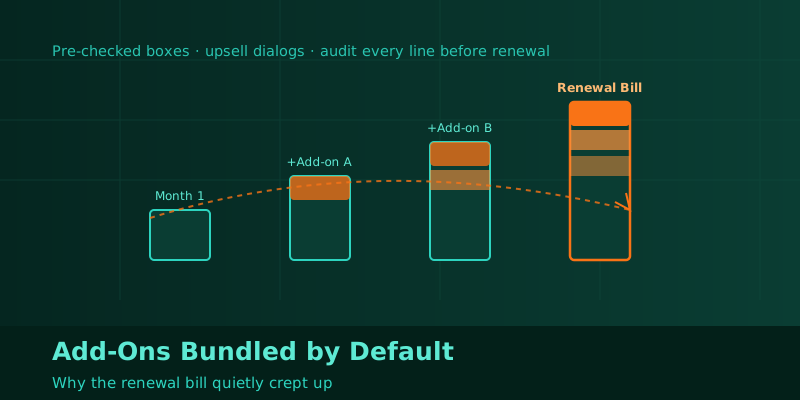
1. "Renewal" and "renewal plus a bundled add-on" show up as one number on the bill
A plain renewal should just extend the subscription at the same price the last cycle used. But plenty of products stuff an "upgrade while you're here" option into the same confirmation screen — extra storage, priority response times, a bigger usage credit pack — as checkboxes or sliders sitting right next to the "confirm renewal" button, easy to submit along with everything else without noticing. The real problem is that the renewal confirmation email and the billing page usually show one lump total, not a breakdown of what changed since last time, so there's no easy way to work backward from a single number to figure out why the bill grew.
2. How add-ons get selected "by accident": pre-checked boxes, upsell dialogs, silent auto-provisioning
Bundled add-ons end up on the bill through a few different paths. One is a checkbox that's pre-checked by default on the renewal screen, requiring the user to actively uncheck it — most people scan the layout and just click confirm. A second is a standalone promo dialog inserted into the renewal flow, using phrasing like "limited-time price" or "just +$X/month" to nudge a click; hitting "activate now" merges the add-on and the renewal into one charge. The third is quieter still: the product auto-provisions a capacity add-on once usage crosses some threshold, framed as "avoiding a service interruption," with no confirmation step at all — it only shows up on the next bill.
3. Three common add-on types: storage expansion, priority support, usage/API credit packs
Different AI products bundle different things, but they tend to fall into three buckets. Storage add-ons expand the space for chat history, project files, and generated output, billed monthly and non-refundable if unused. Support add-ons package "priority response" or "a dedicated contact" as a paid extra, often priced close to the main subscription itself. Credit-pack add-ons target heavy users, bundling extra compute, tokens, or generation runs past the main plan's quota into a renewable pack — usually shown as its own line labeled "Add-on" or "Usage Pack," which is easy to mistake for a price hike if you never open the itemized detail.
4. Why these add-ons are so hard to spot: no itemized bill, no specific notification
Most billing emails just say "your subscription renewed, amount $XX," without breaking out the main subscription fee from any add-on fee the way a credit card statement would. The subscription dashboard usually does have a detail view, but it's tucked into a secondary "billing history" or "invoices" page that nobody checks regularly — the page people actually look at day to day just shows the next charge date and a total. That information gap means add-on fees can sit quietly on the bill for months before anyone notices, especially the ones that were provisioned "just in case" and never actually used — there's no visible value to notice, only a line item that turns up during an occasional audit.
5. On team subscriptions, add-on permissions often aren't limited to the admin
Team or workspace plans amplify the risk — a lot of products let any team member trigger a storage or credit-pack add-on when their own usage runs tight, and the charge lands directly on the team's main bill. The admin often sees it for the first time only when the monthly statement rolls up, with no clear record of who turned it on or when. Auditing the bill matters more on team plans than individual ones — it's worth making a habit of exporting billing history periodically and cross-checking it by add-on type and activation date, rather than only glancing at whether the total is over budget.
6. A pre-renewal checklist: billing detail, subscription dashboard, and the notification email, side by side
The steadier approach is to make this a fixed routine before every renewal: pull the last two or three cycles of billing detail from the dashboard's billing history and read every line to identify which ones are the base subscription versus an add-on; check the "add-ons" or "extras" section of subscription settings to see what's currently active on the account and each item's billing cycle; then compare the latest renewal notification amount against the sum of the itemized detail — a mismatch usually means an add-on's billing cycle isn't aligned with the main subscription's. To compare how transparent different AI tools' add-on pricing actually is, a tool directory like chdh.me is a reasonable place to browse pricing-page screenshots for similar products before deciding whether to keep an add-on.
7. After cancelling an add-on, where does the money go: refund timing versus the next renewal
Cancelling an unwanted add-on itself is usually straightforward — understanding the refund rule is the hard part. Most add-ons follow a "stop future billing, no refund for the current cycle" policy, meaning money already paid this cycle doesn't come back and the add-on stays active until the cycle ends. Some products do prorate a refund by remaining days, but the refund path may not exactly match the original payment method — with a virtual card in particular, a refund sometimes lands back on the card balance rather than as a cash-out, so it's worth deciding upfront whether to keep that balance for the next renewal or it risks getting forgotten and wasted once the virtual card expires.
8. A dedicated virtual card per subscription makes add-on creep visible
Running each AI subscription through its own virtual card makes an add-on-driven bill increase much easier to catch — set the card's limit to just cover the base subscription price, and if a charge gets declined because an add-on pushed it over the limit, that decline itself is a useful signal to go check which add-on got quietly checked during renewal. Only raise the limit once you've confirmed the add-on is worth keeping long-term. A card sized to "just enough, decline if it's more" surfaces unexpected line items faster than an unlimited card ever will.
9. Bottom line: a quick look at the itemized bill before renewal beats reconstructing it afterward
Bundled add-ons aren't inherently shady — plenty of them solve real needs. The issue is how easily they get pre-checked or slipped into the same charge via a promo dialog during renewal, while the bill and notification email rarely break anything out. Spending a few minutes in the subscription dashboard to see what add-ons are currently active and whether each is still worth it beats renewing every cycle with a vague feeling that "this seems a bit more than last time" and no way to explain why. This is entry seven in the series — more overlooked details in AI subscription payments and account management are coming.